User guide
Arca keeps your characters' inventory and works out what they can still carry. Each part answers one question: go straight to the one you need.
1. Getting started
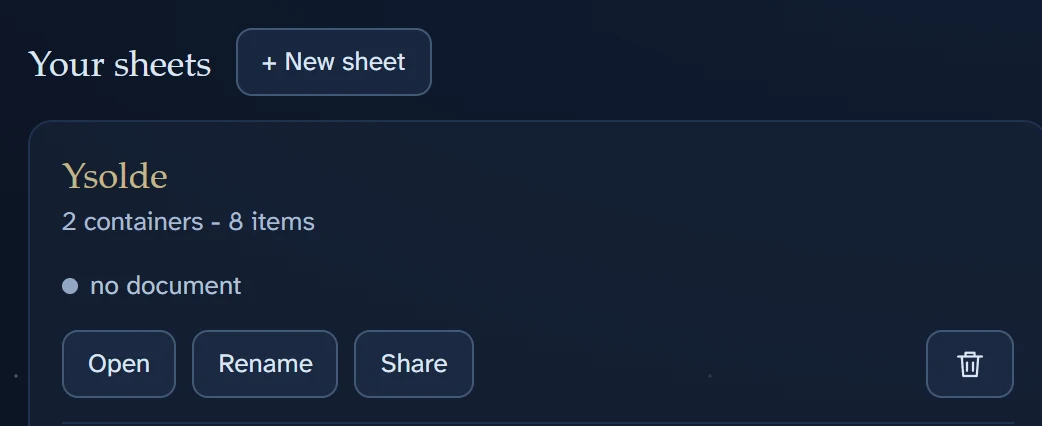
Without an account, a sheet is ready at once and stays in this browser. With a Google account, your sheets follow you on every device and can be shared.
- Click Sign in with Google, then + New sheet, and name the character.
- Click Open to fill the sheet.
- Click Save, or turn on auto-save and forget about it.
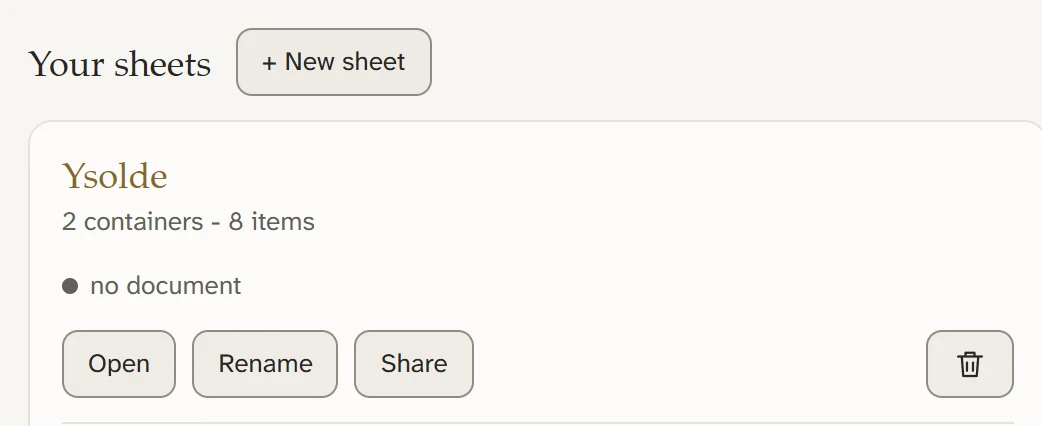


No account? Everything works except sharing and the Google Doc. Export the sheet now and then: clearing the browser data clears it too.
2. Filling the inventory
An inventory is made of containers (bag, chest, mount...) that hold items.
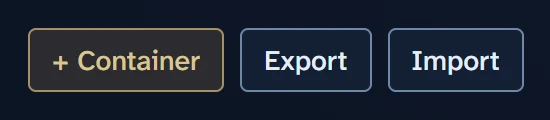
- Click + Container and name it. The handle left of the name moves it: drag it, or use the up and down arrow keys. The arrow next to it collapses the container.
- Give it a capacity, here 1 m³ of volume.
- Add items with + Item, at the bottom of the container. Quantities and measures take decimals and fractions:
0.25,1/20,6/8,1 1/2. - For each measure, choose lot when it covers the whole stack, or each when it covers a single item: Arca then multiplies it by the quantity.
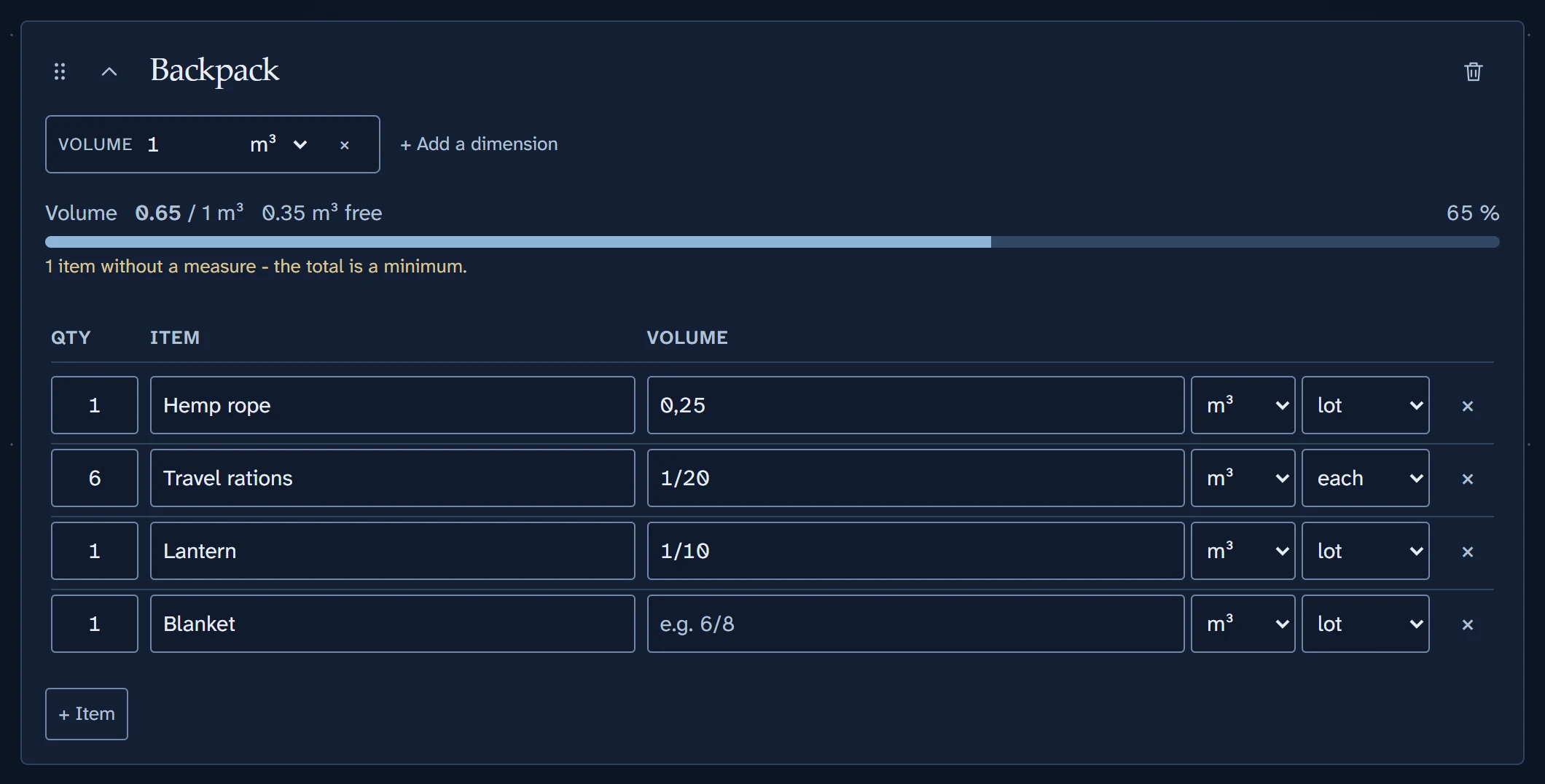
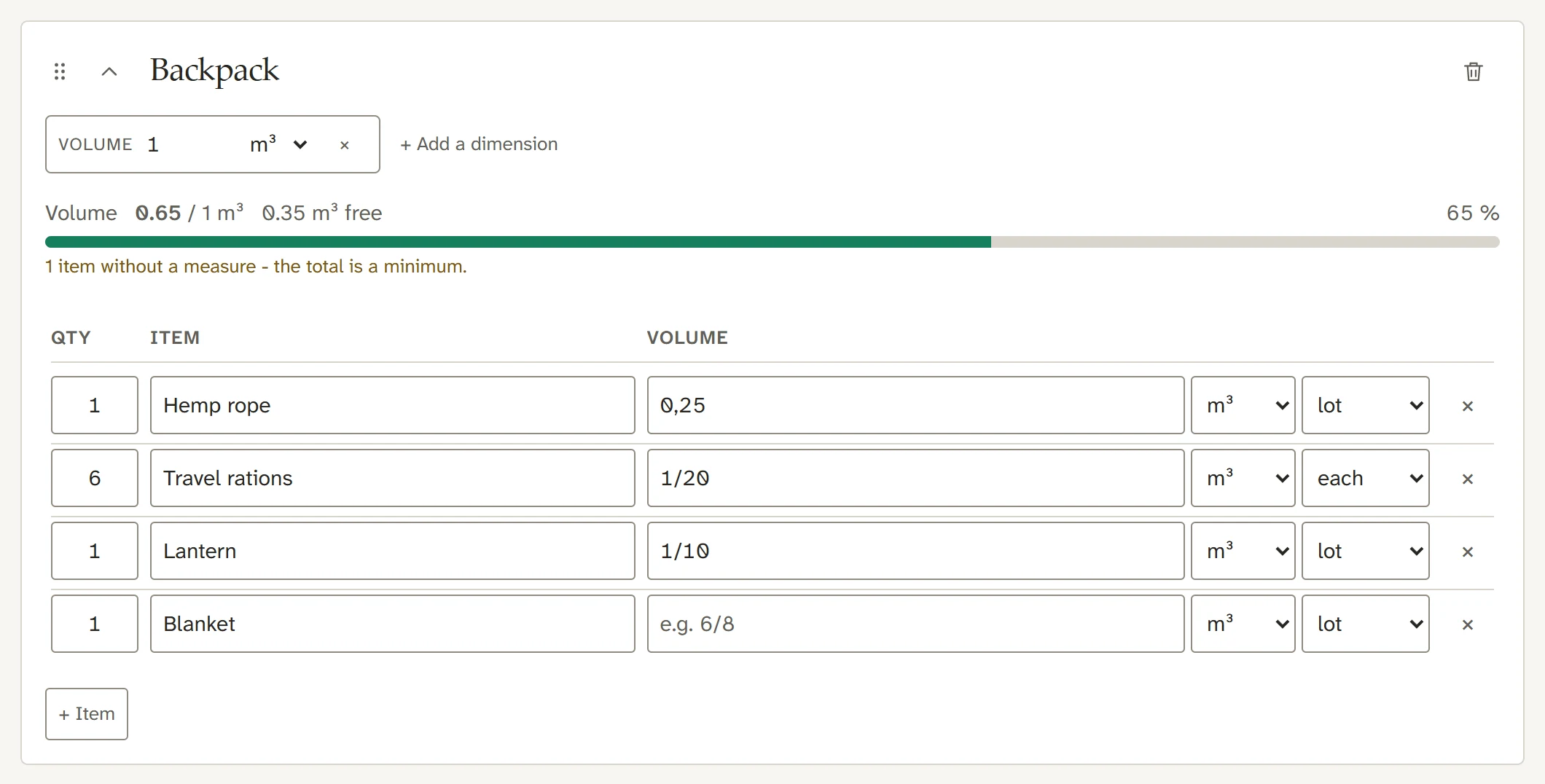
Empty or zero? A measure left empty means not measured, not zero. Arca says so under the gauge and counts the total as a minimum.
3. Dimensions and capacities
A dimension is what you measure: volume, mass, slots, or any other rule of your game.
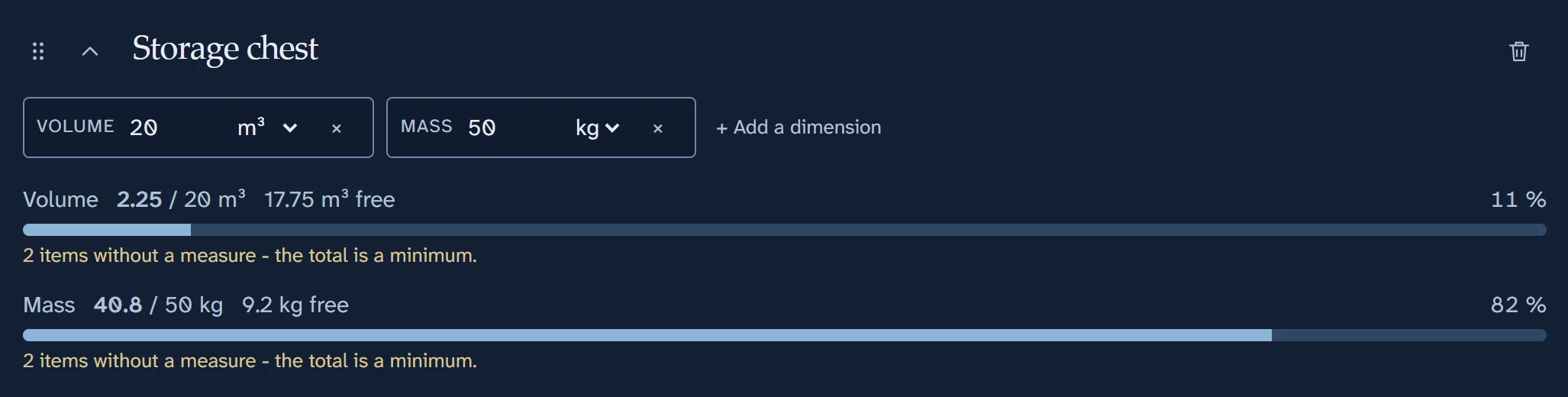
- Each capacity box sets a limit in one dimension, with its unit: m³, L, kg, lb, slots... Units of the same dimension convert into each other.
- + Add a dimension gives the container one more limit, a mass on top of the volume for example. The container is full as soon as one of them is reached.
- Your game counts differently? In the unit list, + New dimension... creates your own (charges, soul points...), with its symbol. It is measured and limited like the others.
4. Reading the encumbrance
Arca adds up the measures of each container and compares them with its capacity.
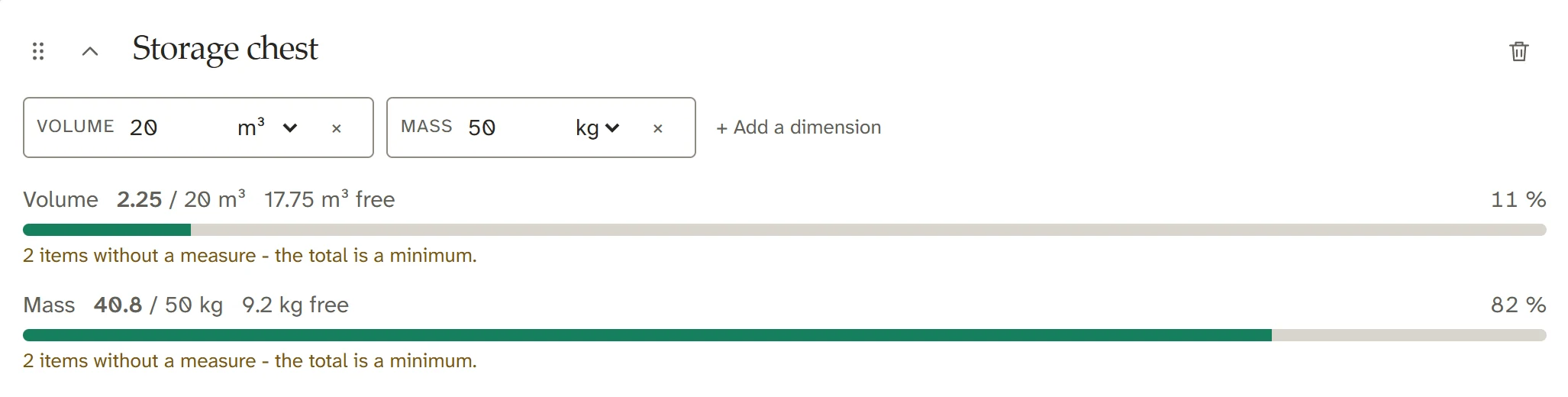
- Each limit has its gauge. It turns orange above 85 %, then red when over the limit, with the excess shown.
- free shows the room left.
- A dimension that is measured but not limited only shows its total, with an add a limit button.
- At the bottom of the sheet, Total, all containers adds up the whole inventory.
- minimum means at least one item is not measured: the real total is higher.


5. Sheets and saving
With an account, each sheet lives on the server. What you type stays in the browser until you save it.
- Sheets, or the Arca logo, goes back to the board of all your sheets.
- Save sends the sheet to the server and replaces the version stored there.
- Load takes the server version back and drops local changes: useful when the sheet was edited elsewhere.
- auto-save saves shortly after each change. The setting applies to this browser.
- Changes not saved yet are kept in the browser: the sheet card then shows local draft.
- On the card, Rename changes the name and the bin deletes the sheet. Deleting is final.
6. Writing to a Google Doc
Arca can write the inventory as a table into a Google Doc, your character sheet for example. This needs an account.
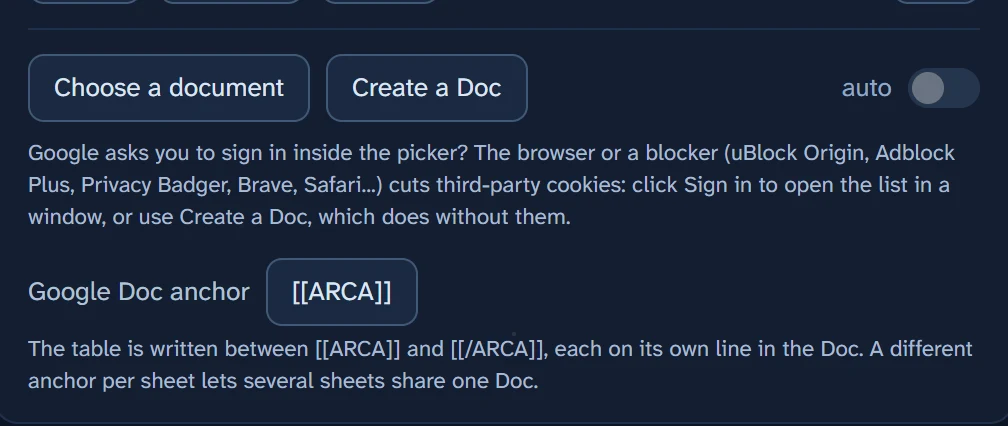
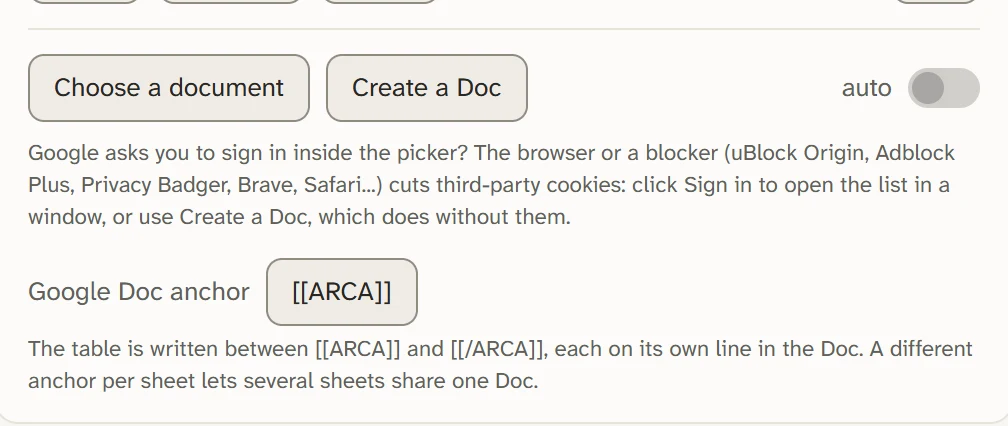
- On the sheet card, click Choose a document and select your Doc.
- The picker does not open? Click Create a Doc: Arca creates one in your Drive, ready for the table.
- Turn on auto so the Doc is updated on every save. Otherwise, Update writes it on demand.
- The table is written between two lines,
[[ARCA]]and[[/ARCA]], each on its own line. Put them in your Doc where you want the table. The anchor button renames it.
- Everything between the two lines is replaced on each write: put nothing else there.
- The card shows Doc up to date or Doc out of date.
- Unlink detaches the Doc from the sheet without changing it.
- Arca only reaches the Docs you point it to or that it created, never the rest of your Drive.
Several sheets in one Doc? Give each one its own anchor, for example [[Ysolde]] and [[Corbin]], and put both pairs of lines in the Doc.
7. Sharing a sheet
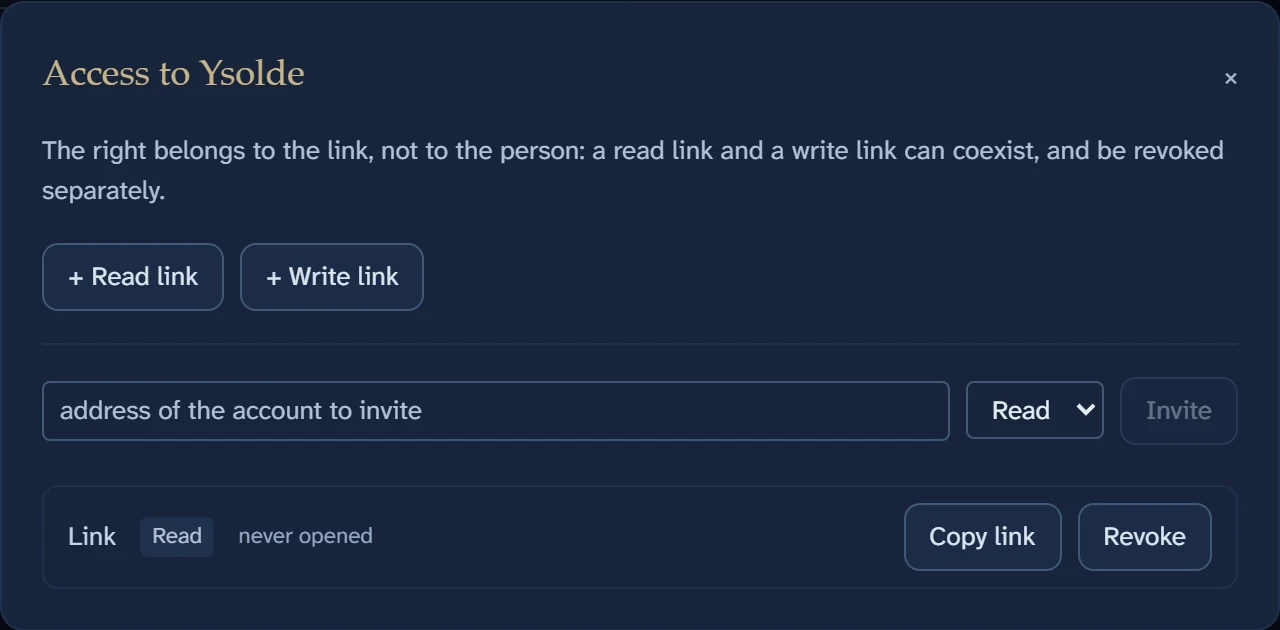
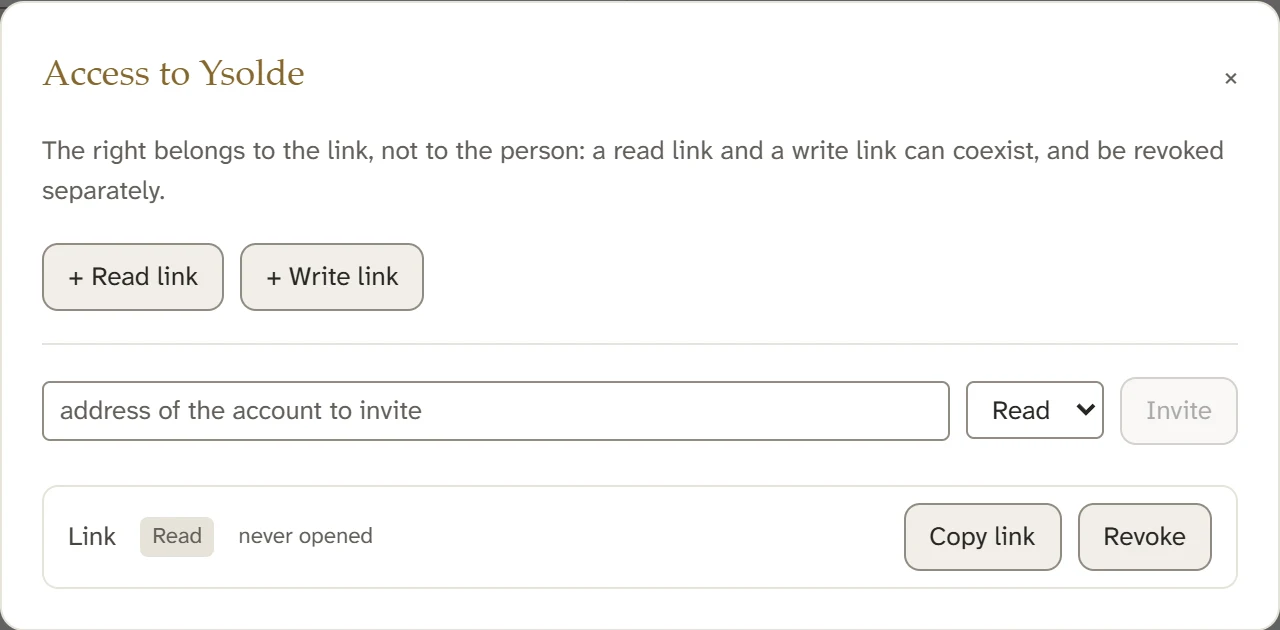
Share a sheet with your table, read-only or editable. On the sheet card, click Share.
- + Read link creates a link that shows the sheet without letting anyone change it. It opens even without an account.
- + Write link creates a link that allows editing.
- For someone who already has an Arca account, type their address and click Invite: the sheet shows up in Shared with me, on their board.
- Copy link, then send it. Revoke cuts access at once.
Live. Saved changes show up for everyone who has the sheet open, and the bar shows who is there. When the Doc auto write is on, a save made through a link updates the Doc too.
8. Backing up
Your sheets are yours: you can take them with you at any time.
- Export downloads the open sheet as a
.jsonfile. - Import replaces the open sheet with the content of such a file.
- On your account page, Export everything downloads all your sheets in one file.
- To move a sheet made without an account into your account: open it, Export, then open a sheet of the account and Import.
- Reset replaces the sheet with the sample inventory.
9. Common problems
- Google shows a warning when signing in.
- Google has not verified Arca yet. Click Advanced, at the bottom left, then Go to arca.fadgiras.com. If you see an administrator message instead, your account is a work or school account that blocks third-party apps: a personal Gmail account will work.
- The Doc picker asks you to sign in.
- Your browser or a blocker (uBlock Origin, Adblock Plus, Privacy Badger, Brave, Safari...) cuts third-party cookies. Click Sign in: the list opens in a separate window. Or use Create a Doc, which does without them.
- The message The Google picker is blocked shows up.
- A content blocker stops the picker from loading. Use Create a Doc, or allow apis.google.com for this site and reload the page.
- Google Drive access not granted.
- The Google Drive permission was unticked when signing in. Sign out, sign in again and leave it ticked.
- Markers not found in the document.
- Add the two anchor lines to the Doc,
[[ARCA]]and[[/ARCA]]by default, each on its own line. - The Doc stays out of date.
- Click Update to see why. If writing still fails, check the Google Docs access on your account page.
- A value is flagged as unreadable.
- Use a number or a fraction:
0.25or1/4. While a value is unreadable, auto-save is paused. - A shared link leads nowhere.
- It was revoked, or the sheet was deleted. Ask its owner for a new link.
- Something else?
- Write to contact@fadgiras.com.